
The Monetize panel now shows real performance and sales data right alongside your Paywall and Dynamic Video Sales setup, so you no longer need to check Stripe separately for routine sales reporting. Stripe still processes every payment behind the scenes, MediaZilla just gives you the numbers.
The panel is organized into up to three tabs depending on your content: Paywall, Dynamic Video Sales, and Sales. Presentations get all three. Standalone videos get Paywall and Sales, since Dynamic Video Sales add-ons are presentation-only.
Your Stripe Connection Status
Your Stripe connection status is always visible above the tabs, so you always know where you stand:
- Connected: your Stripe account is connected and ready to process sales.
- Not Connected: Paywalls and add-ons can't process new sales yet. Admins can connect Stripe directly; Managers will see a prompt to ask an admin.
- Needs Attention: your connection has an issue that needs a review before new sales can go through.
If Stripe ever gets disconnected after you've already made sales, your historical performance and sales history stay fully visible. Only new purchases are affected.
Choosing a Date Range
Performance and sales data can be viewed across Last 7 Days, Last 30 Days, Last 90 Days, Last 12 Months, This Year, or All Time. Your setup fields (price, description, etc.) aren't affected by the date range, only the performance numbers and sales records are.
Paywall Tab
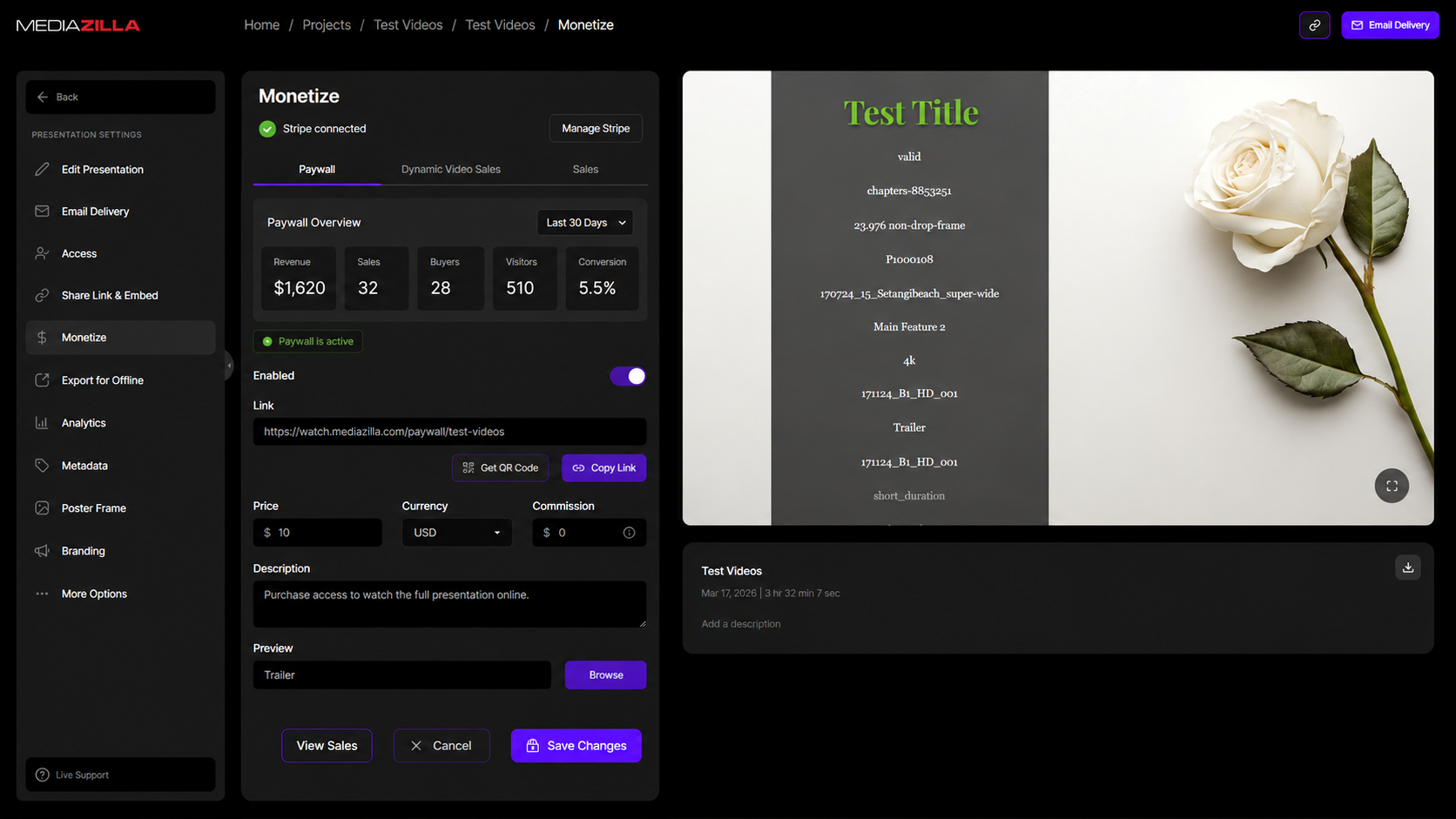
All your existing Paywall setup controls are still here exactly as before: enabling or disabling the Paywall, your Paywall link and QR code, price, currency, commission, description, and preview. What's new is a compact performance section showing:
- Revenue: successful Paywall revenue.
- Sales: completed Paywall checkouts (add-on checkouts are never mixed in here).
- Buyers: unique people who purchased.
- Visitors: unique people who viewed the Paywall.
- Conversion: buyers divided by visitors.
If your Paywall is active but hasn't had any visitors yet, you'll see "No Paywall activity yet" instead of a confusing blank or a zero. If it's had visitors but no purchases, you'll see "No Paywall purchases yet." And if it's not set up at all, you'll see a simple prompt to add one.
Dynamic Video Sales Tab
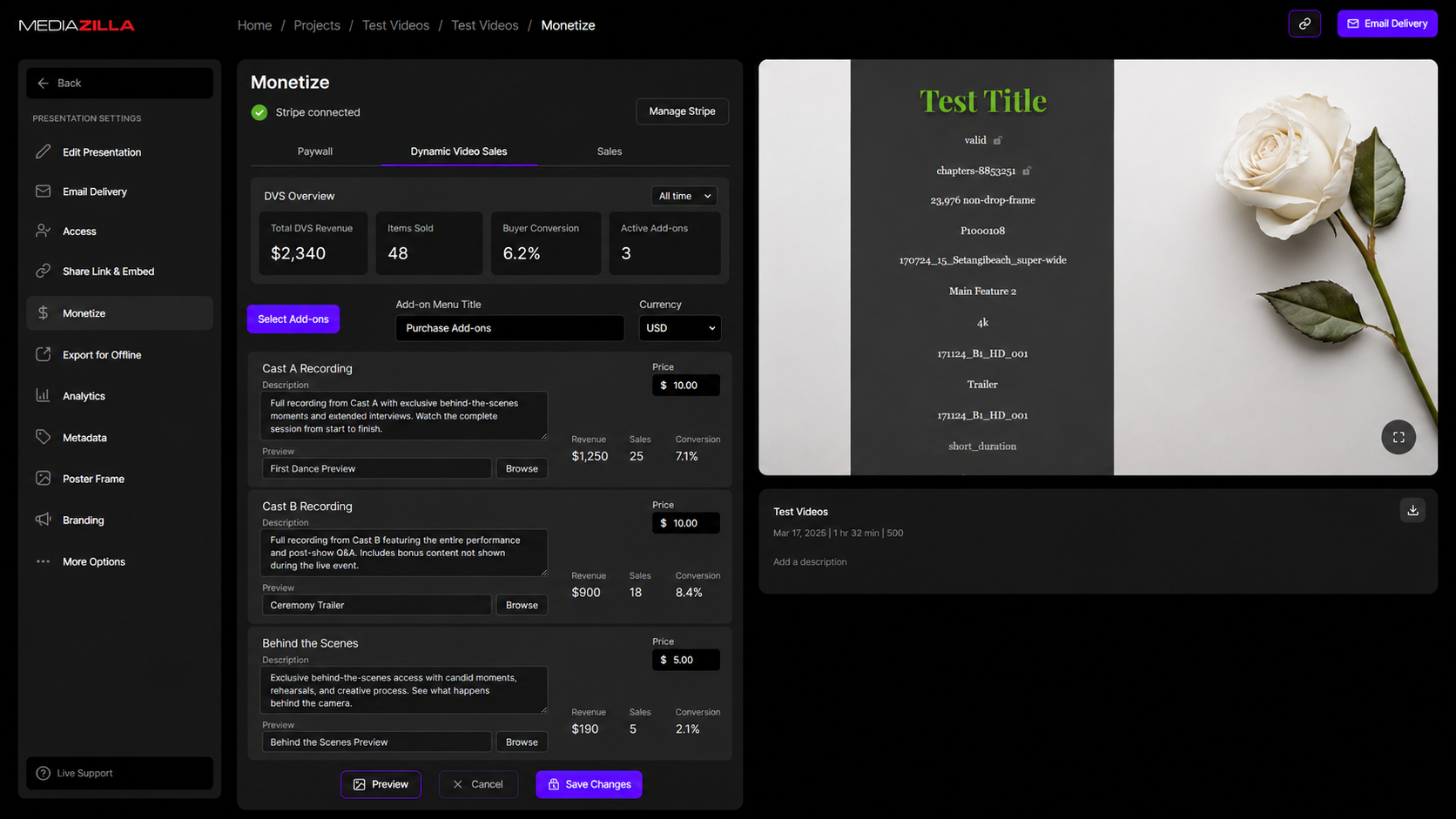
For presentations, every configured add-on now shows its own performance right on its card:
- Revenue: gross revenue from that specific add-on.
- Items Sold: how many times it's been purchased.
- Buyers: unique purchasers of that add-on.
- Eligible Viewers: unique viewers who were shown that add-on.
- Conversion: buyers divided by eligible viewers.
At the top of the tab, an overview totals Revenue, Items Sold, Buyers, Buyer Conversion, and Active Add-ons for the whole presentation across your selected date range. This overview includes add-ons you've since removed, so historical sales are never lost, even though a removed add-on no longer has its own card. Removing an add-on is purely a merchandising change: buyers who already purchased it keep their access.
If one checkout includes several add-ons, it still counts as one sale, with each add-on getting credit for its own item sold and its own share of the revenue.
Sales Tab
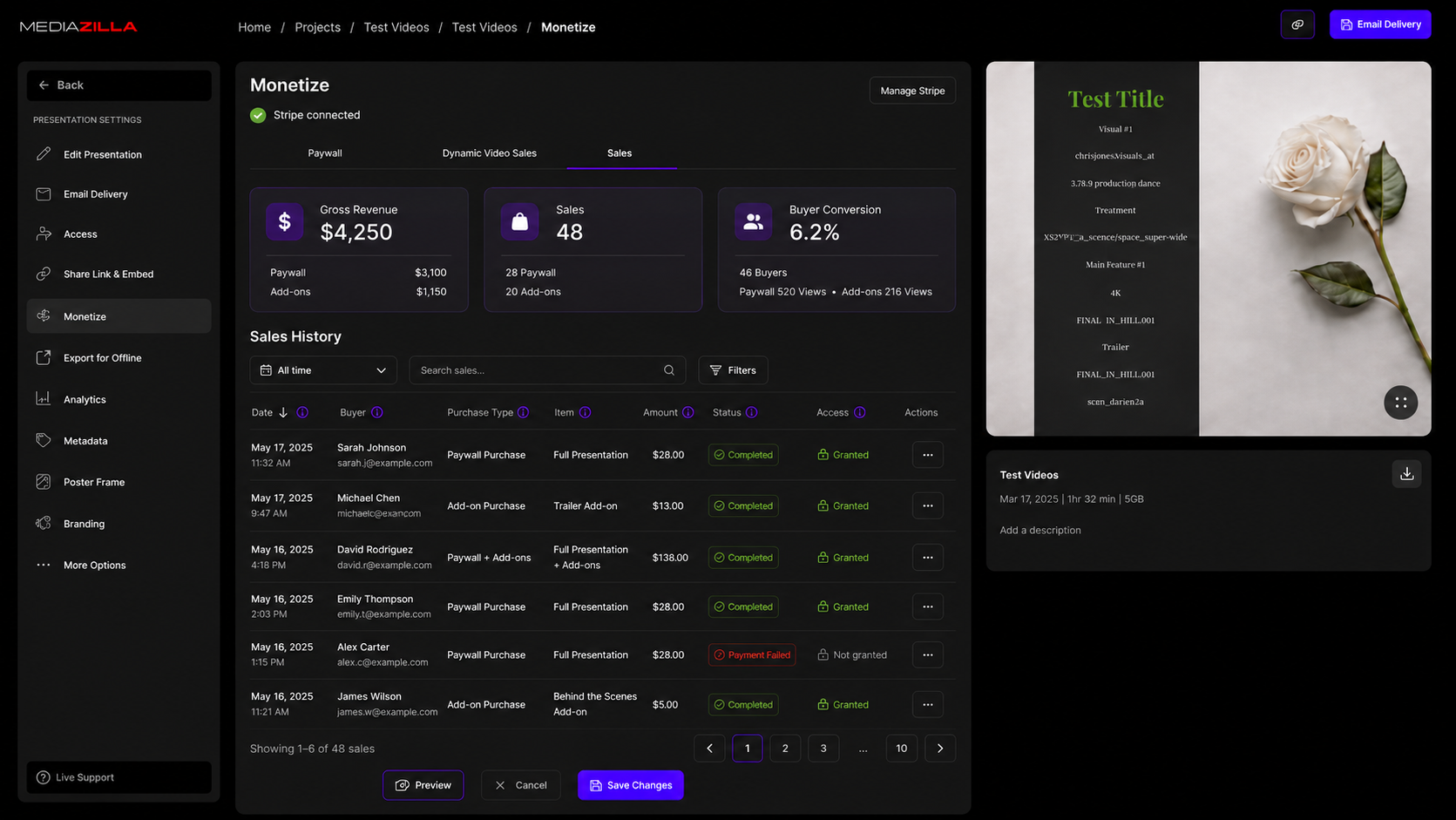
The Sales tab is your full purchase history for that piece of content. At the top, a summary shows Gross Revenue, Sales, Buyer Conversion Rate, Buyers, and Buy Page Views, with a Paywall vs. add-on breakdown when a presentation has both.
Finding a specific sale
Search by buyer name, email, or purchased item title. Filter by purchase type (Paywall or add-ons), payment status (Successful, Abandoned, or Failed), access status (Enabled or Revoked), and date range. Sort by most recent, oldest, highest or lowest amount, buyer, or payment status.
What each sale shows
Every row in the sales table includes the buyer's name and email, the purchase date and time in your local timezone, whether it was a Paywall or add-on purchase, exactly what was bought (with a tooltip if multiple add-ons were purchased together), the amount and currency paid, payment status, and access status.
Failed and abandoned checkouts
Not every checkout succeeds, and now you can see why. A Failed checkout is one where a payment attempt was declined and never completed; an Abandoned checkout is one that was started but expired with no payment attempt at all. If a payment was declined and then succeeded on a retry, it shows as Successful, not Failed. Failed and abandoned checkouts never count toward your revenue, sales, or buyer totals, but you can still see the buyer's email (where available), what they tried to buy, and, for failed payments, a plain-language reason like "Card declined."
Managing a Buyer's Access
The Sales tab tells you what was purchased, when, and for how much. For anything about the buyer's actual access, permissions, or revoke/restore, click Manage Access to jump straight to the content's Access page, filtered to that buyer.
Multiple Currencies
If you sell in more than one currency, your aggregate performance numbers are shown in your account's Stripe settlement currency, while each individual order still shows exactly what the buyer paid, in the currency they paid it in.
Jumping in from Your Account-Level Monetization Page
Buttons on your account-level Monetization page now take you straight to the right spot here, whether that's a specific add-on, the Paywall setup, or the Sales tab, and a "Back to Monetization" link returns you to where you started with your filters and search intact.
What's Different for Standalone Videos
Standalone videos get the same Paywall performance and full sales history as presentations. Dynamic Video Sales add-ons are presentation-only, so that tab simply won't appear on a standalone video.
Works on Any Device
The whole panel, tabs, performance summaries, add-on cards, and sales records, is fully usable on desktop, tablet, and mobile, with sales records switching to a card layout on narrower screens so buyer, amount, status, and actions all stay visible.